Where to find your API key in Meser10
The API key lets your own system, website or plugin send email and SMS through your account. Here is where it is and how to copy it.
The API key is a personal code that identifies your account. Anything that sends through your account from outside, such as your website, a plugin or your own code, needs it. Sign in at app.mesereser.com and follow the two steps below.
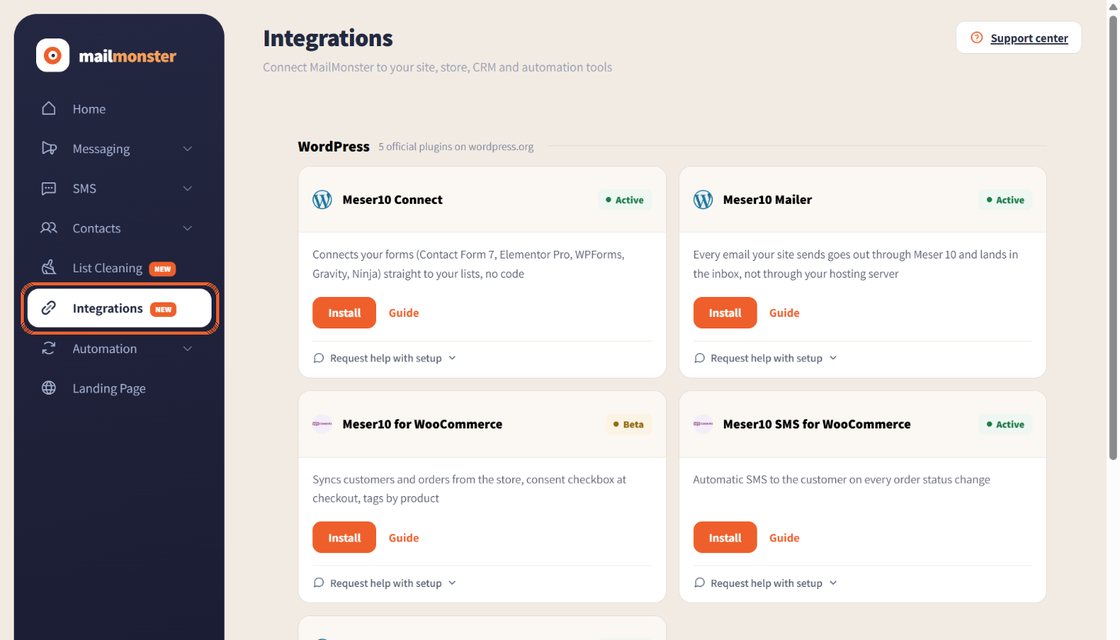
1. Open the Integrations screen
In the side menu, click Integrations. The screen lists every way to connect your site and your systems, and the API key is at the bottom of it.
2. Copy the API key
Scroll down to the Developer API box. The API key field holds the key of your account, hidden behind dots. Click Copy and paste it into the system or plugin you want to send from. Reveal shows the key on the screen if you need to read it.
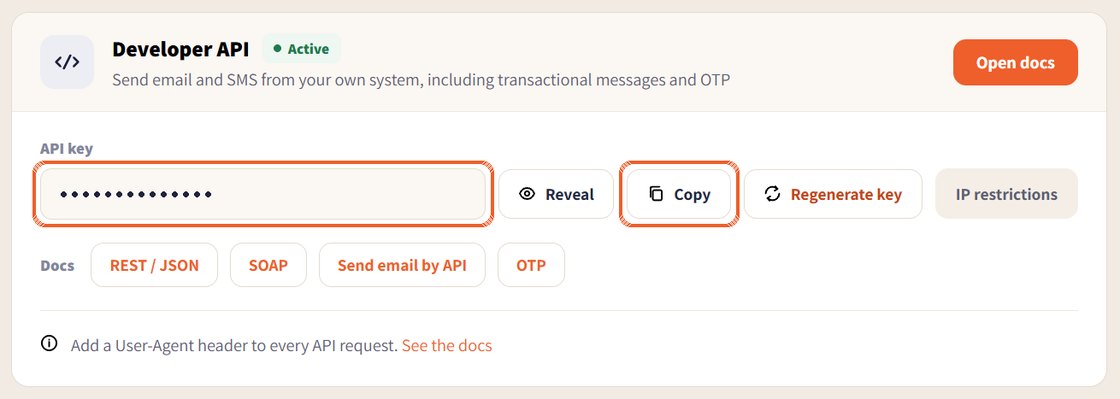
The REST / JSON and SOAP buttons in the same box open the API documentation.
Tip: the API key allows sending from your account, so treat it like a password and do not share it in public. With the IP restrictions button you can limit the key to specific IP addresses.
Some tools also ask for your account number. See where to find your account number.
Still in the classic system?
The Integrations screen and the API key are in the new system. If you are still working in the classic system, switch to the new one with the button at the top of the screen. This guide is also available in Hebrew.
Questions
Where is the API key in Meser10?
In the new system, click Integrations in the side menu. The Developer API box at the bottom of the screen has the API key field, with Reveal and Copy buttons next to it.
What can I do with the API key?
Send email and SMS from your own system or website, including transactional messages and one-time codes (OTP). The full documentation opens from the REST / JSON and SOAP buttons on the same screen.
Do I need to keep the API key secret?
Yes. The key allows sending from your account, so treat it like a password and do not publish it. You can also limit its use to specific IP addresses with the IP restrictions button.