How to import contacts into Meser10
Upload a CSV or Excel file and your contacts are ready for your next campaign. Four short steps, with screenshots.
Prepare an Excel (xlsx) or CSV file with one sheet, one contact per row and the column names in the first row, for example Email address, First name and Last name. Sign in at app.mesereser.com and follow the steps below.
1. Open Import Contacts
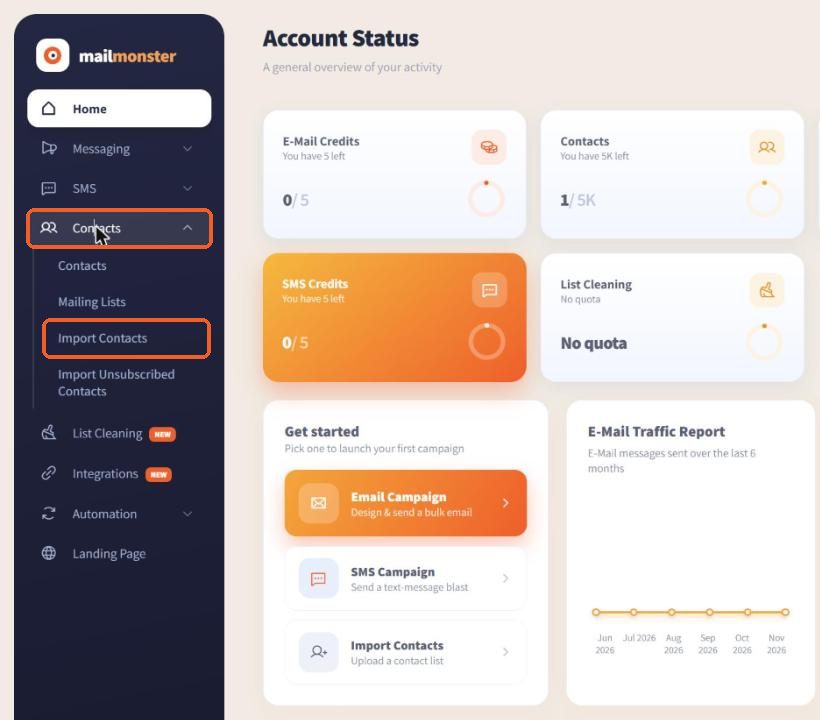
In the side menu, click Contacts and then Import Contacts. You can also start from Import Contacts under Get started on the home screen.
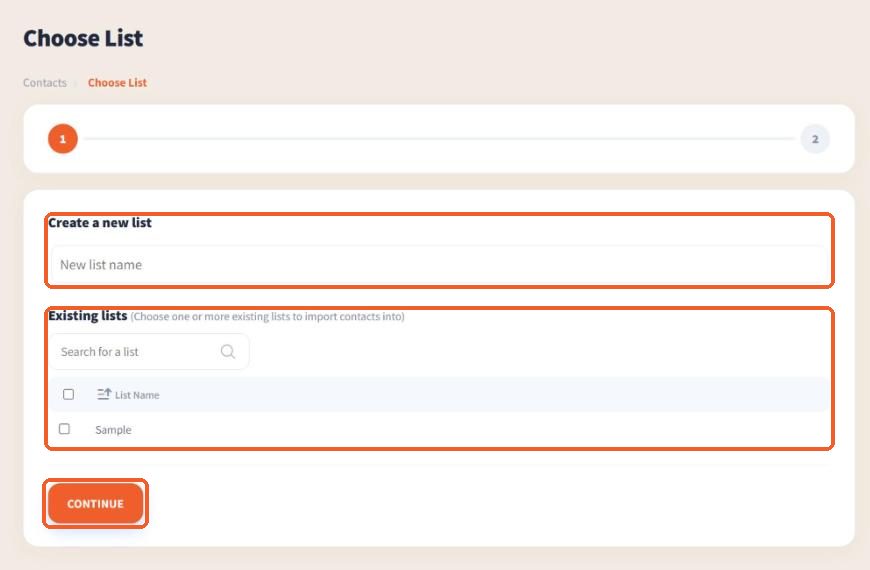
2. Choose the list
To start a new list, type its name under Create a new list. To add the contacts to lists you already have, tick them under Existing lists. Then click CONTINUE.
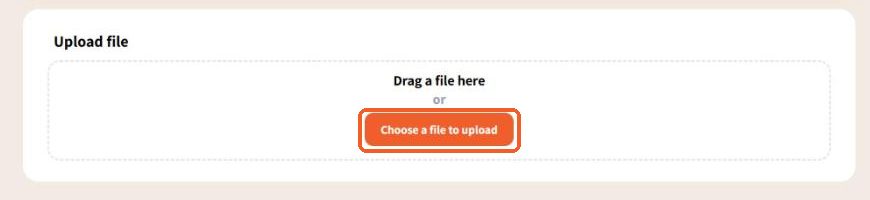
3. Upload the file
Drag your file into the box, or click Choose a file to upload and pick it from your computer.
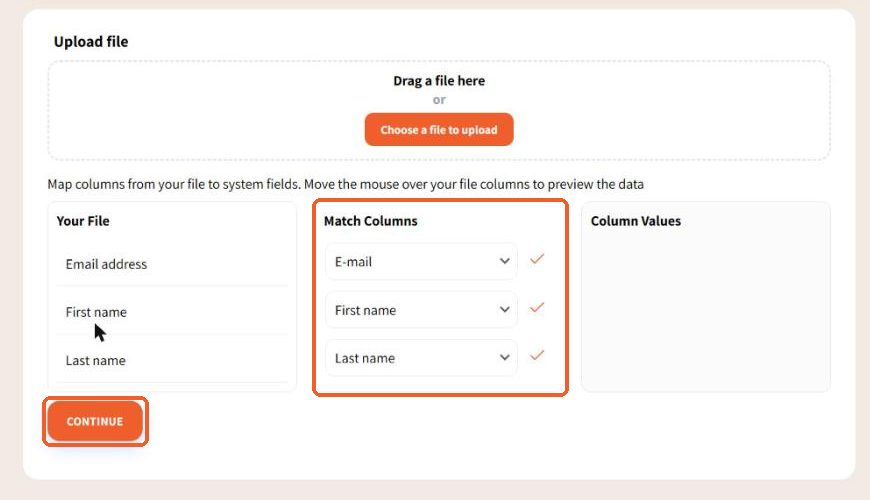
4. Match the columns
The system shows the columns of your file on the left. Under Match Columns, each one starts as (Unmatched). Choose E-mail for the email column, and First name and Last name for the name columns. Hover over a column to preview its values on the right. When every column you need shows a check mark, click CONTINUE.
The system shows how many records were imported out of the rows in the file. Duplicate or invalid addresses are not imported. You can now choose the list as the recipient list of your next campaign.
Tip: if you exported the list from another system, export only the active contacts. Contacts who unsubscribed from your account stay unsubscribed even if they appear in the file.
Need your account number for our support team? See where to find your account number.
Still in the classic system?
This guide shows the new system. If you are still working in the classic system, switch to the new one with the button at the top of the screen. This guide is also available in Hebrew.
Questions
How do I import contacts into Meser10?
In the new system, open Contacts in the side menu and click Import Contacts. Create a new list or choose an existing one, upload a CSV or Excel file, match the columns to E-mail, First name and Last name, and click CONTINUE.
Which file types can I import?
An Excel file (xlsx or xls) or a CSV file, with one sheet, the column names in the first row, and one contact in every row after it.
Can I add contacts to a list I already have?
Yes. In the first step, tick one or more lists under Existing lists instead of typing a new list name.
What happens to contacts who unsubscribed?
Contacts who unsubscribed from your account stay unsubscribed even if they appear in the file you import, and they will not receive your campaigns.