How to move, duplicate and delete blocks
Reorder the parts of your email, duplicate a block, style its background, and restore an earlier version.
Reorder the parts of your email, duplicate a block, style its background, and restore an earlier version. This guide covers the drag-and-drop editor in the new system at app.mesereser.com.
1. Hover over the block
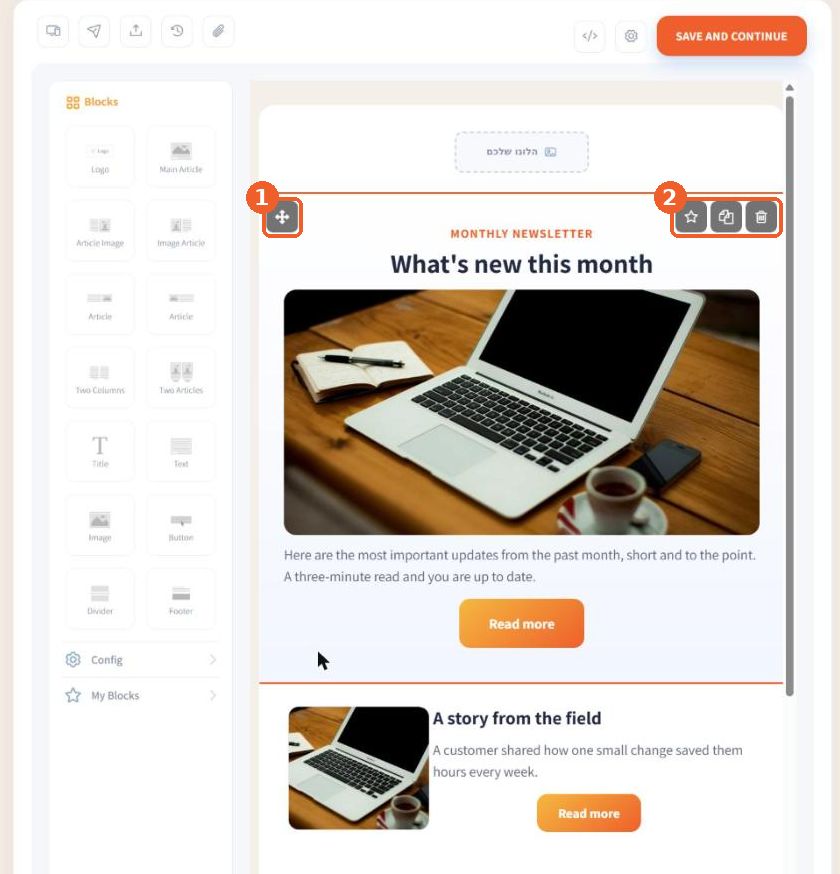
Buttons appear on every block: the cross arrows on the left (1) move it, drag them up or down. On the right (2): the star saves it to My Blocks, then duplicate and the trash to delete.
2. Style the whole block
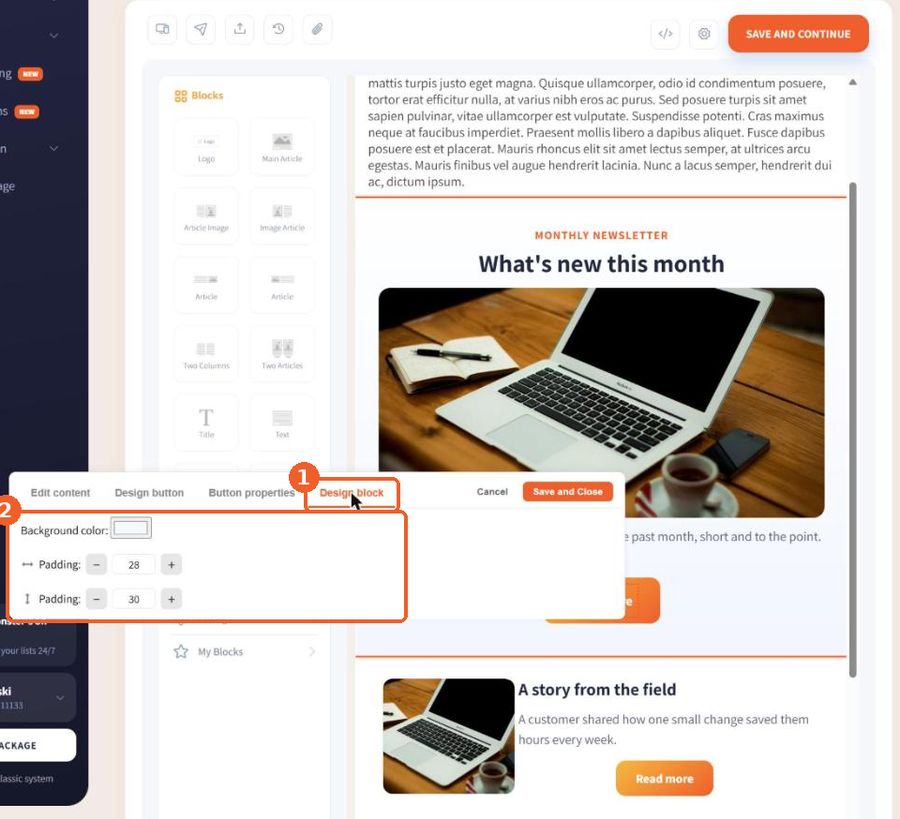
Click inside the block and open the Design block tab. Choose a Background color and set the horizontal and vertical Padding around the content.
3. Restore an earlier version
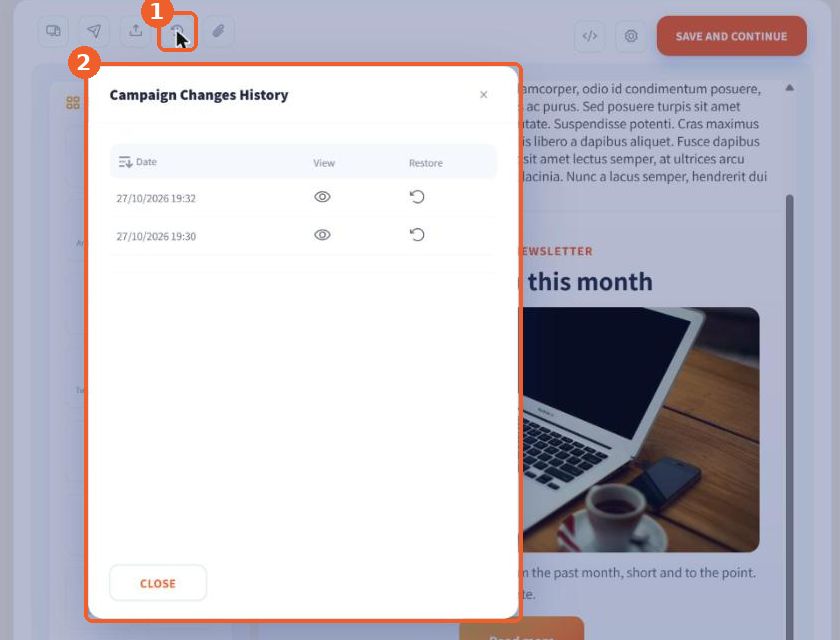
Changed or deleted something by mistake? Click the clock icon in the top bar (1). Campaign Changes History (2) lists the saved versions by date and time: the eye shows a version and the circular arrow restores it.
Tip: Every save is kept in the changes history, so you can always go back.
FAQ
How do I change the order of the parts of my email?
Hover over the block, grab the cross-arrows icon at its top left and drag the block to its new place.
I deleted a block by mistake. Can I get it back?
Yes. The clock icon in the editor's top bar opens the campaign changes history, where you can restore an earlier version.