Change a button's text, link and design, or add a new button. This guide covers the drag-and-drop editor in the new system at app.mesereser.com.
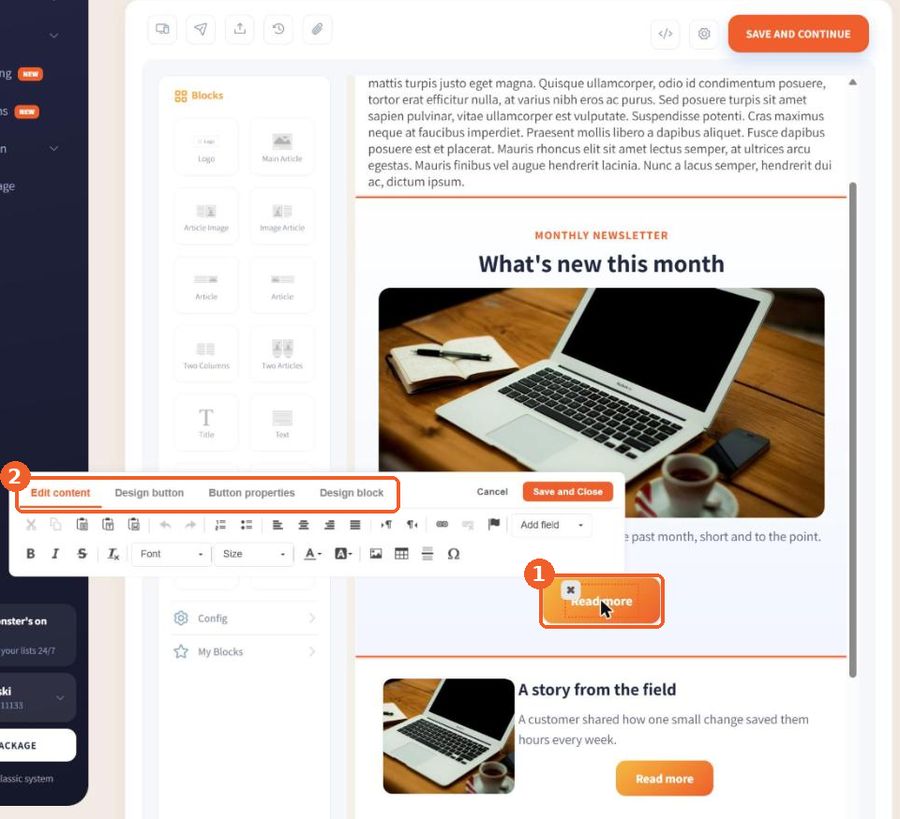
1. Click the button
Clicking a button opens a toolbar with four tabs (2): Edit content, Design button, Button properties and Design block. To add a new button, drag the Button block from the Blocks panel.
2. Set the text and the link
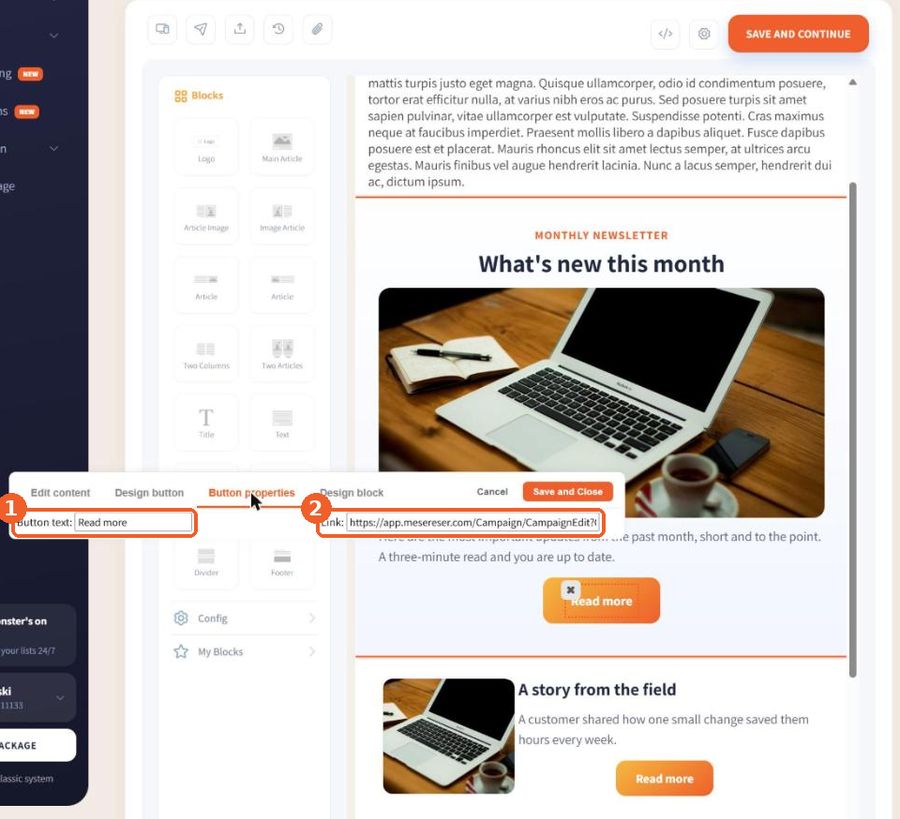
On the Button properties tab, type the label in Button text (1) and paste the address it should open in Link (2).
3. Design the button
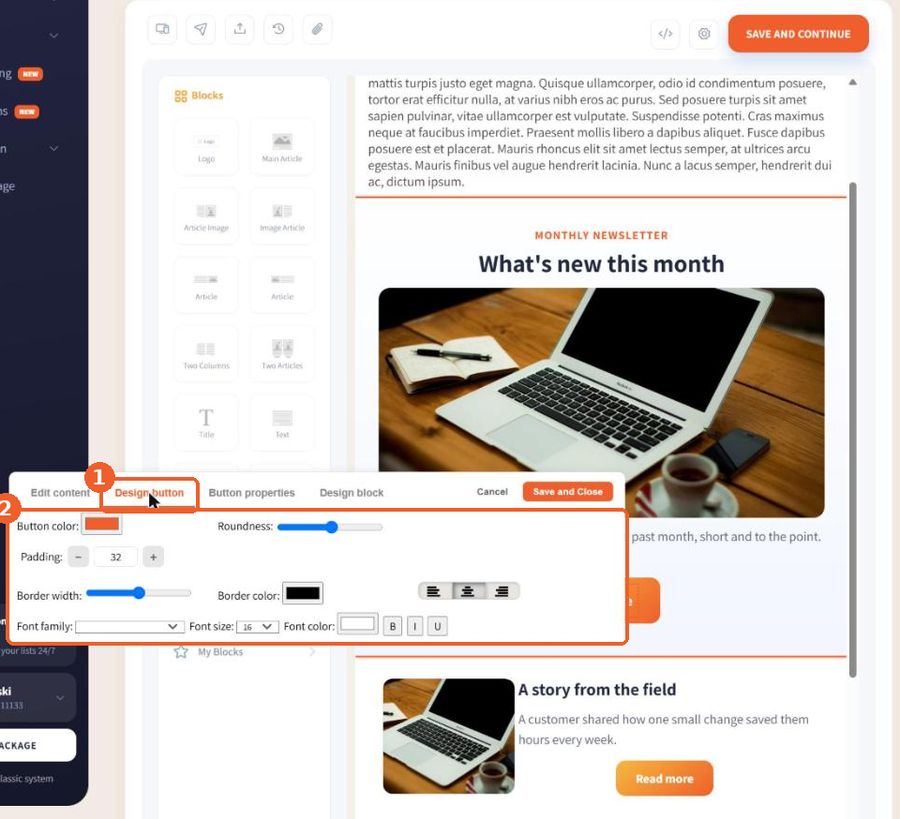
On the Design button tab choose the button color, roundness, padding, border width and color, alignment, and the font, size and color of the text.
Tip: Short, clear labels work best, such as "Order now" or "Read more". After a change, send yourself a test and click the button to check the link.
FAQ
How do I change a button's link?
Click the button, open the Button properties tab and paste the new address in Link.
How do I change a button's color?
Click the button and open the Design button tab to set its color, roundness, border, alignment and font.