How to add a text box
In the drag-and-drop editor every part of the email is a block. Three steps and you have a new text box.
In the drag-and-drop editor every part of the email is a block. Three steps and you have a new text box. This guide covers the drag-and-drop editor in the new system at app.mesereser.com.
1. Drag the Text block
In the Blocks panel on the left, grab the Text block and drag it into the email, to the spot where you want the text.

2. The block is added
When you release the mouse, a new text box appears where you dropped it, with sample text you can replace.

3. Click inside and type
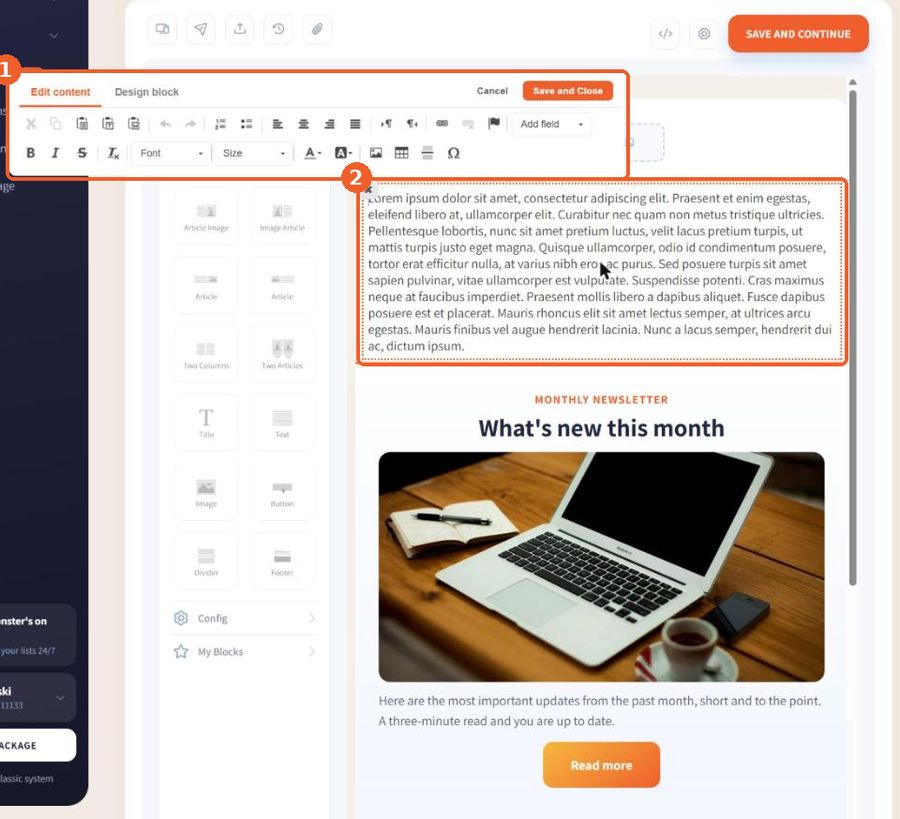
Click inside the box to open the editing toolbar (1): font, size, bold, color, alignment and links. Type your text in the box (2). When you are done, click Save and Close.
Tip: When you hover over a block, buttons appear to move, save to My Blocks, duplicate and delete it.
FAQ
How do I add text to an email in the drag-and-drop editor?
Drag the Text block from the Blocks panel into the email, click inside the new box and type. The toolbar lets you change font, size, color and alignment.
How do I delete a text box?
Hover over the block and click the trash icon at its top right.