How to replace or add an image
Swap the sample image for your own: from a link, from your image library or from your computer, and link it anywhere.
Swap the sample image for your own: from a link, from your image library or from your computer, and link it anywhere. This guide covers the drag-and-drop editor in the new system at app.mesereser.com.
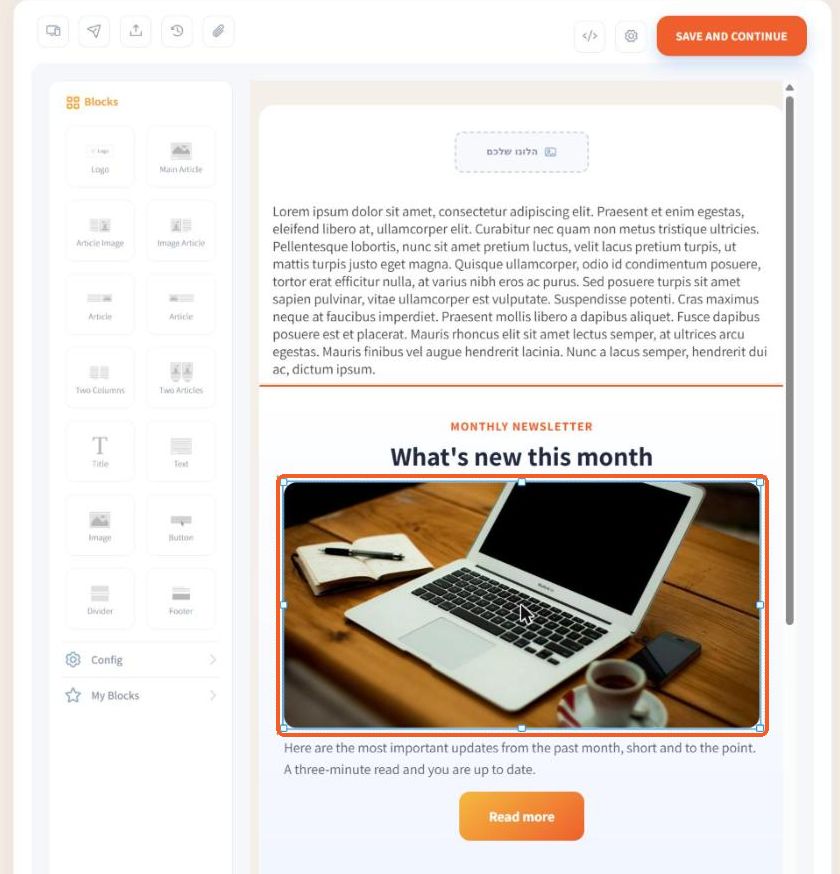
1. Double-click the image
One click selects the image and shows resize handles. A double-click opens Image Properties. To add a new image, first drag the Image block from the Blocks panel.
2. Pick an image from your library or a link
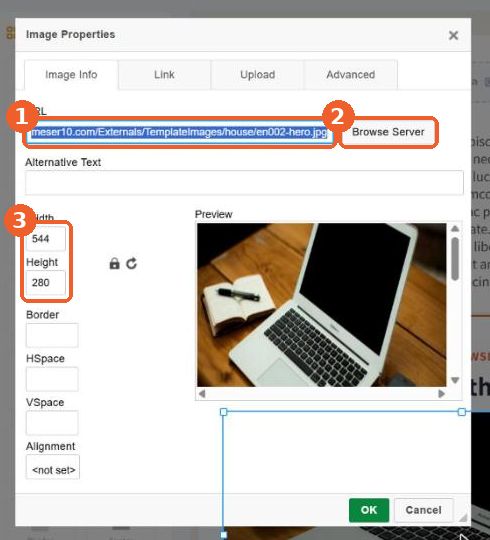
On the Image Info tab, paste an image address in URL (1), or click Browse Server (2) to choose an image you already uploaded. Width and Height (3) set the size, and the lock keeps the proportions.
3. Or upload from your computer
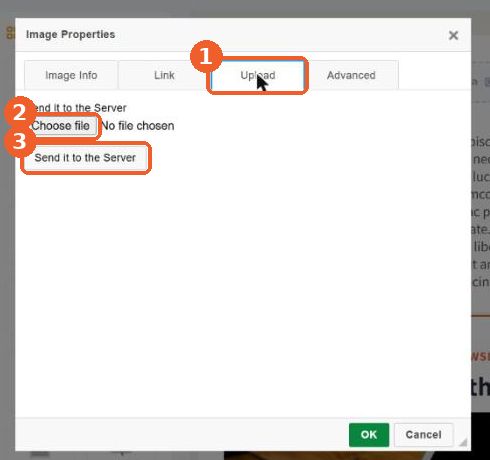
On the Upload tab (1), click Choose file (2), pick a file, then click Send it to the Server (3). The image is saved to your library and placed in the email.
4. Link the image
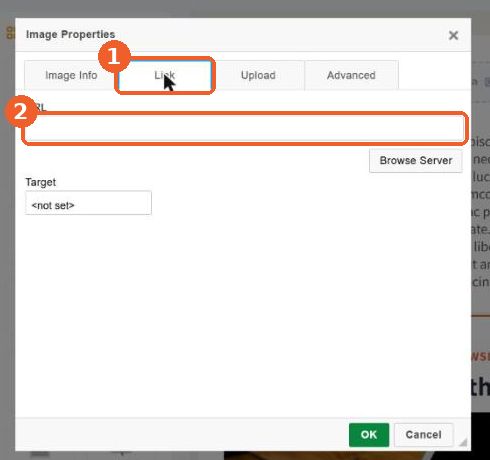
On the Link tab, paste the address that a click on the image should open, and choose a Target if it should open in a new window. Click OK when you are done.
Tip: An image that spans the full width of the email should be 600 pixels wide, or 1200 pixels for a sharper look on high-resolution screens. Compress heavy images before uploading.
FAQ
How do I replace an image in a template?
Double-click the image. In Image Properties paste an image URL, choose one with Browse Server, or upload a file on the Upload tab.
What size should images be?
An image that spans the full email width should be 600 pixels wide, or 1200 pixels for high-resolution screens.