How to format text
Font, size, bold, color, alignment, lists, links and personal fields: everything in the text toolbar.
Font, size, bold, color, alignment, lists, links and personal fields: everything in the text toolbar. This guide covers the drag-and-drop editor in the new system at app.mesereser.com.
1. Click inside the text
Clicking inside a text block opens the editing toolbar above it. Select the words you want to change and pick an action.
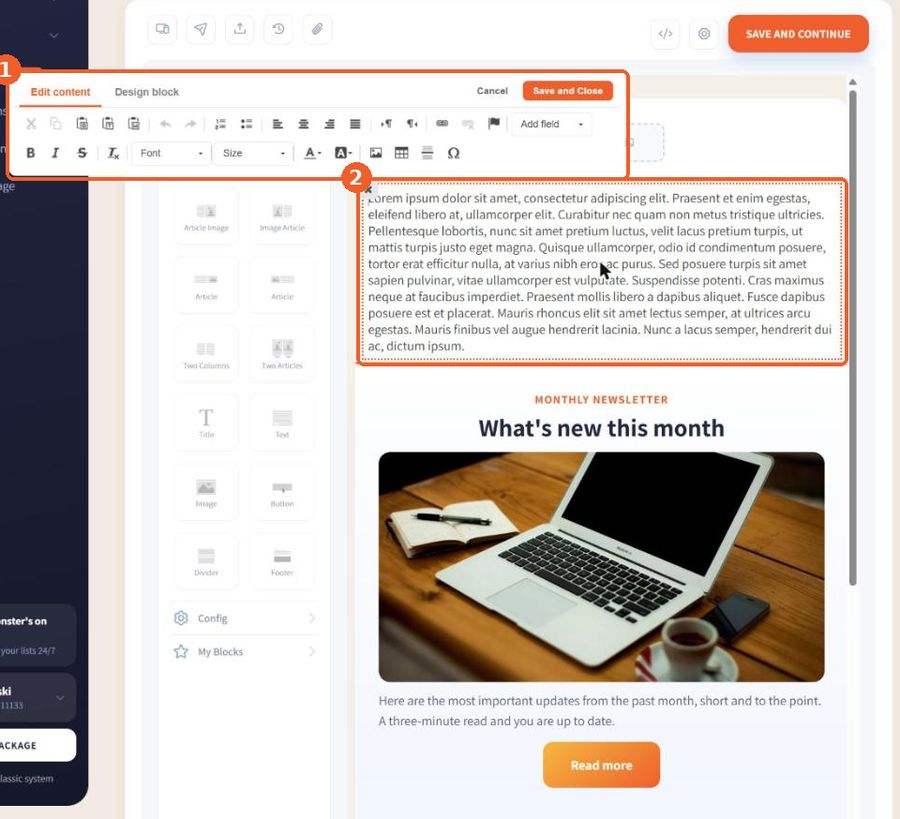
2. What is in the toolbar
Top row: cut, copy and paste, Paste as plain text and Paste from Word, undo and redo, numbered and bulleted lists, align left, center, right and justify, text direction, link and unlink, anchor, and Add field. Bottom row: B bold, I italic, strikethrough, Remove Format, Font, Size, text color, background color, image, table, horizontal line and special characters.

3. Add the recipient's name
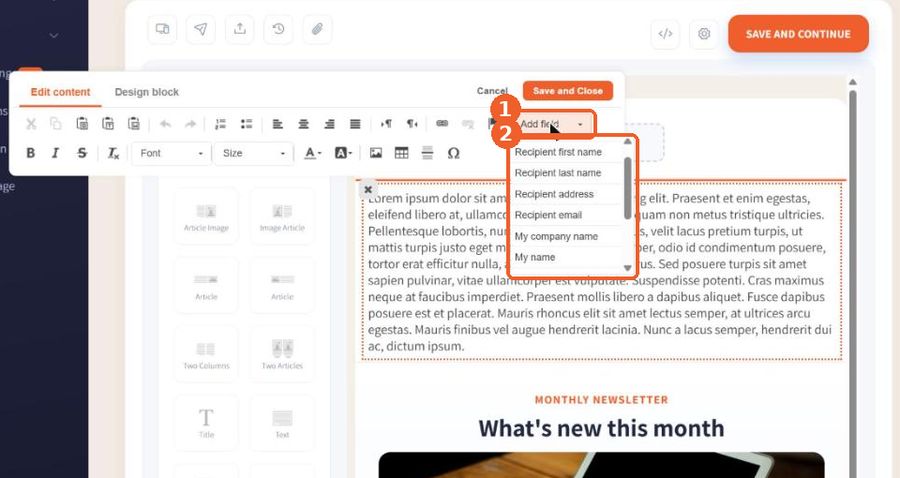
Open Add field (1) and choose a personal field (2): the recipient's first or last name, address or email, or your own company name and details. The field is filled in for each recipient when the email is sent.
Tip: Pasting text from Word or a website? Use "Paste from Word" or "Paste as plain text". If the formatting is already off, select the text and click "Remove Format".
FAQ
How do I add a link to a word?
Select the word, click the link (chain) icon in the toolbar and paste the address.
How do I greet each recipient by name?
In the text toolbar open Add field and choose Recipient first name. It is filled in for each recipient when the email is sent.