How to set the subject and sender name
Subject line, sender name, reply-to address and other campaign settings, right inside the editor.
Subject line, sender name, reply-to address and other campaign settings, right inside the editor. This guide covers the drag-and-drop editor in the new system at app.mesereser.com.
1. Open the settings
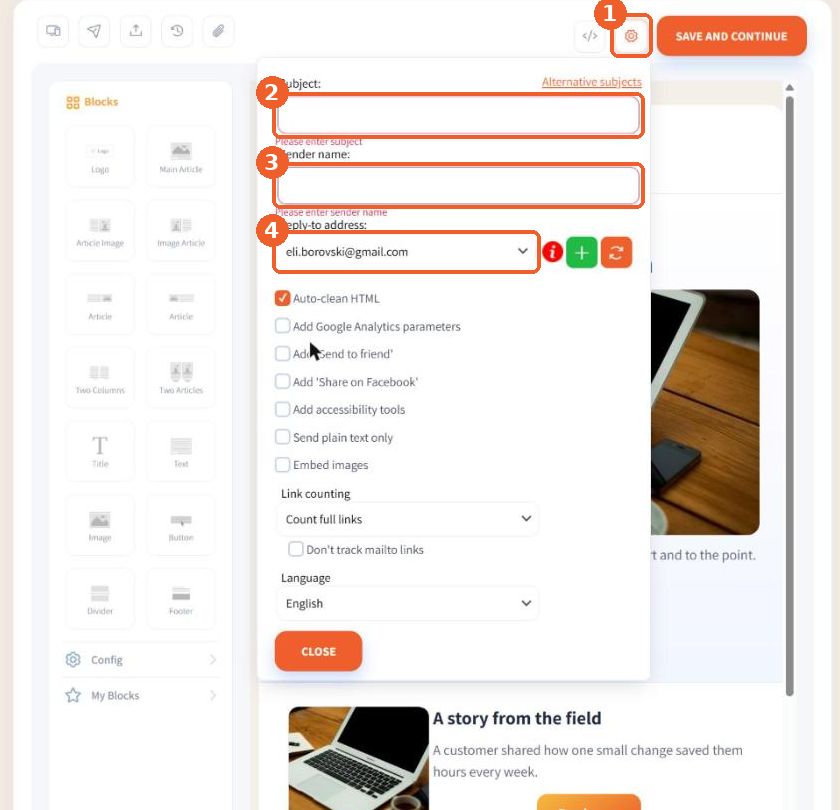
The settings window opens by itself the first time you enter the editor. After that, open it with the gear icon (1) next to Save and Continue. It holds the Subject (2), the Sender name (3) and the Reply-to address (4).
2. Fill in the details and options
Write a subject that makes people want to open the email and a sender name your readers recognise. Below are options such as Google Analytics parameters, "Send to friend" and "Share on Facebook" links, accessibility tools, link counting and the email language. Click Close when you are done.
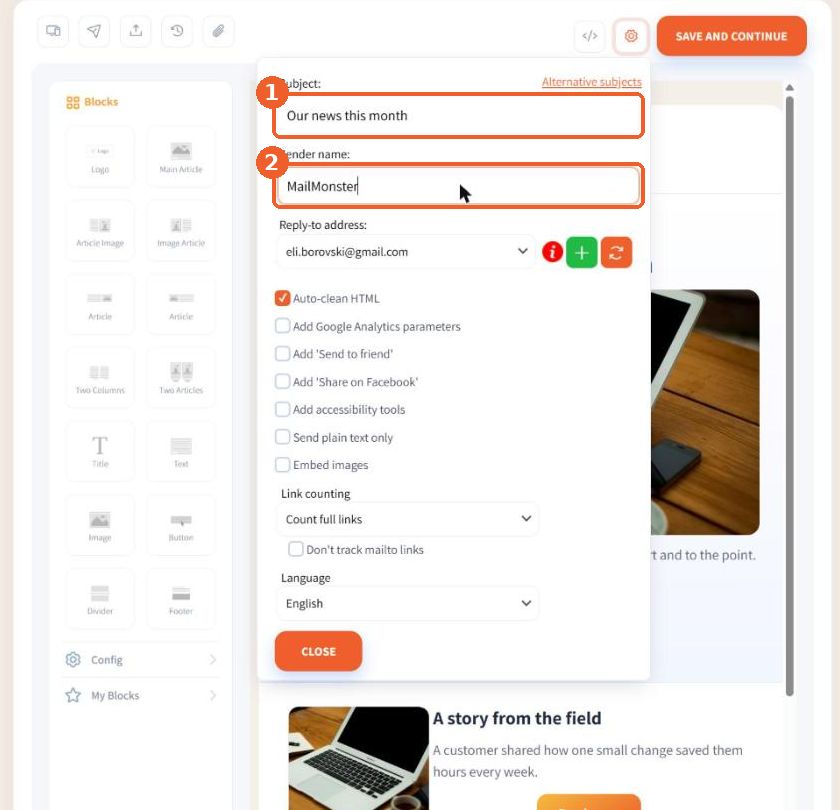
Tip: A short subject is read in full on a phone too. The sender name should be the business name your customers know.
FAQ
Where do I set the subject line?
In the editor, click the gear icon next to Save and Continue. Fill in the subject, sender name and reply-to address in the window that opens.
What should I write in the subject line?
A short, clear subject that says what is inside. A short subject is read in full on a phone too.