How to preview and send a test
See how your email will look to recipients and send yourself a test before the real send.
See how your email will look to recipients and send yourself a test before the real send. This guide covers the drag-and-drop editor in the new system at app.mesereser.com.
1. Open the preview
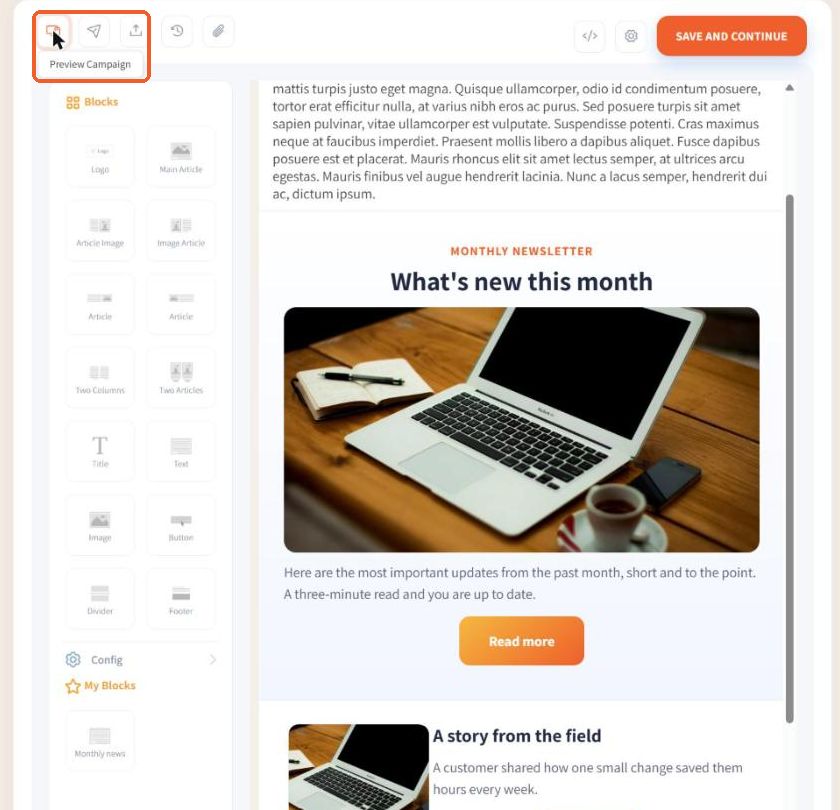
In the editor's top bar click the Preview Campaign icon. The email opens in a new tab exactly as recipients will see it.
2. Check the email
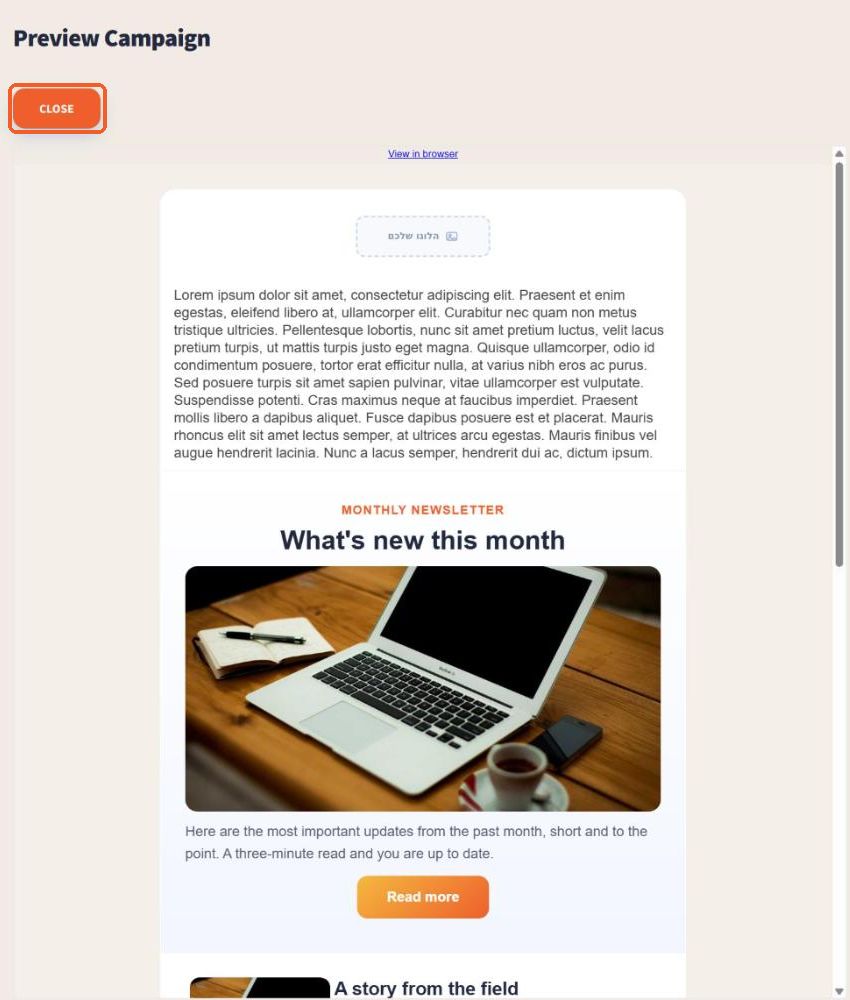
Scroll through and check the text, images and buttons. Click Close to return to the editor.
3. Send yourself a test
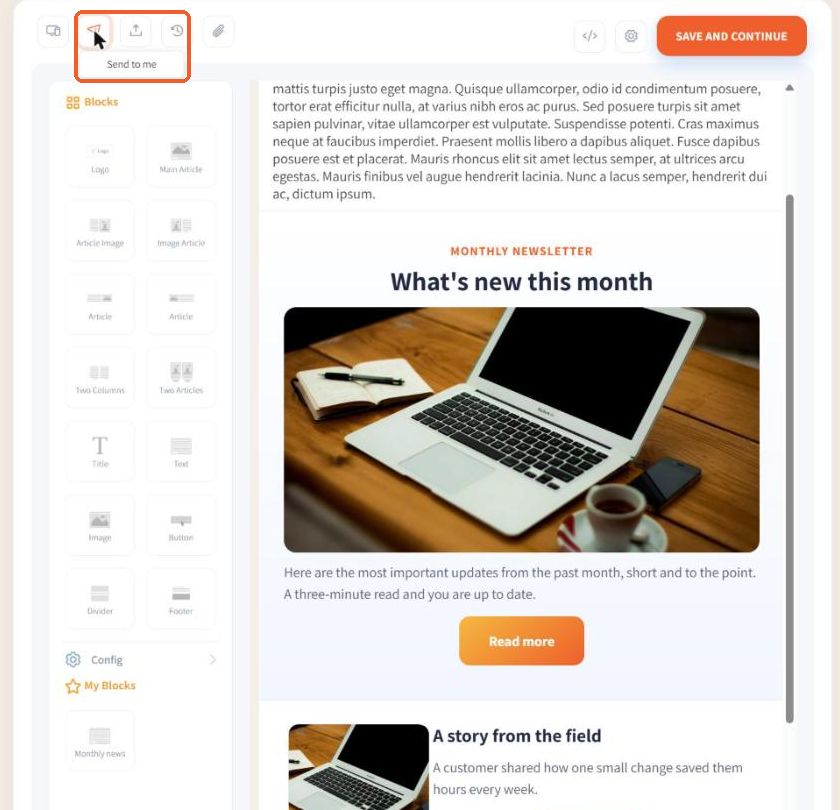
Click the Send to me (paper plane) icon to send a test to your own address. Set a subject in the settings first.
4. The test is on its way
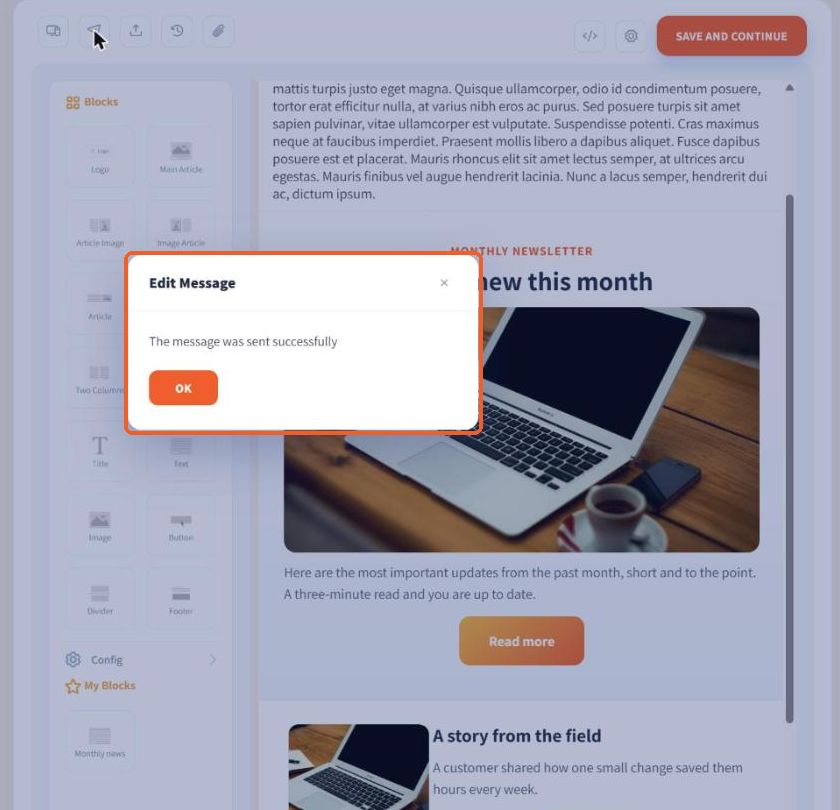
The message was sent successfully confirms the email went out. Open it in your inbox, on your phone too, and click the links to check everything works. Then click Save and Continue to choose recipients and send.
Tip: Always send a test before sending to your list. A mistake is easy to fix before sending, and impossible after.
FAQ
How do I send a test email before sending?
In the editor click the Send to me (paper plane) icon. The test goes to your own address. Set a subject in the settings first.
How do I see how the email will look to recipients?
Click the Preview Campaign icon in the editor's top bar. The email opens in a new tab exactly as recipients will see it.