How to save a block for reuse
Save a block you designed to My Blocks and use it again in any email.
Save a block you designed to My Blocks and use it again in any email. This guide covers the drag-and-drop editor in the new system at app.mesereser.com.
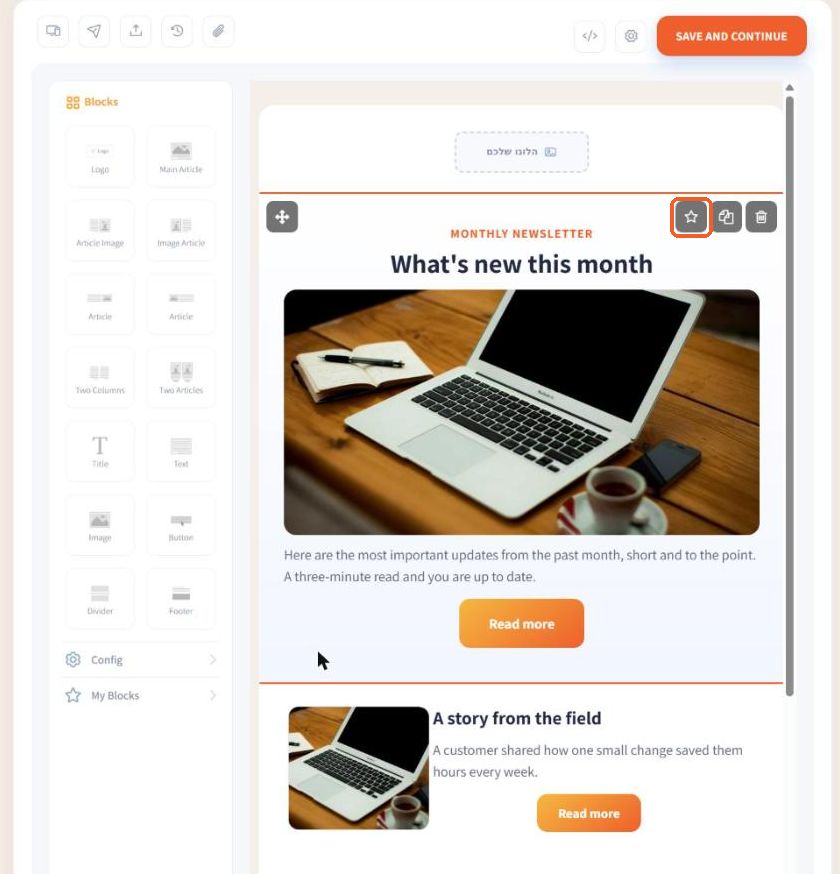
1. Click the star
Hover over the block you want to keep and click the star icon.
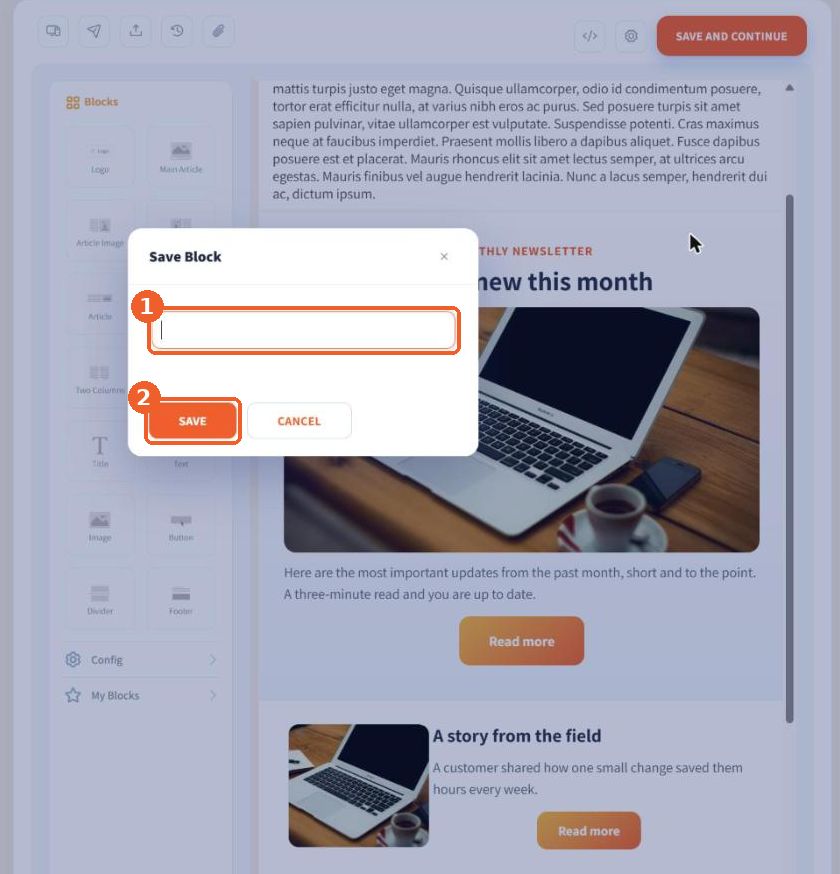
2. Name it and save
In the Save Block window, type a name that will help you find it (1) and click Save (2).
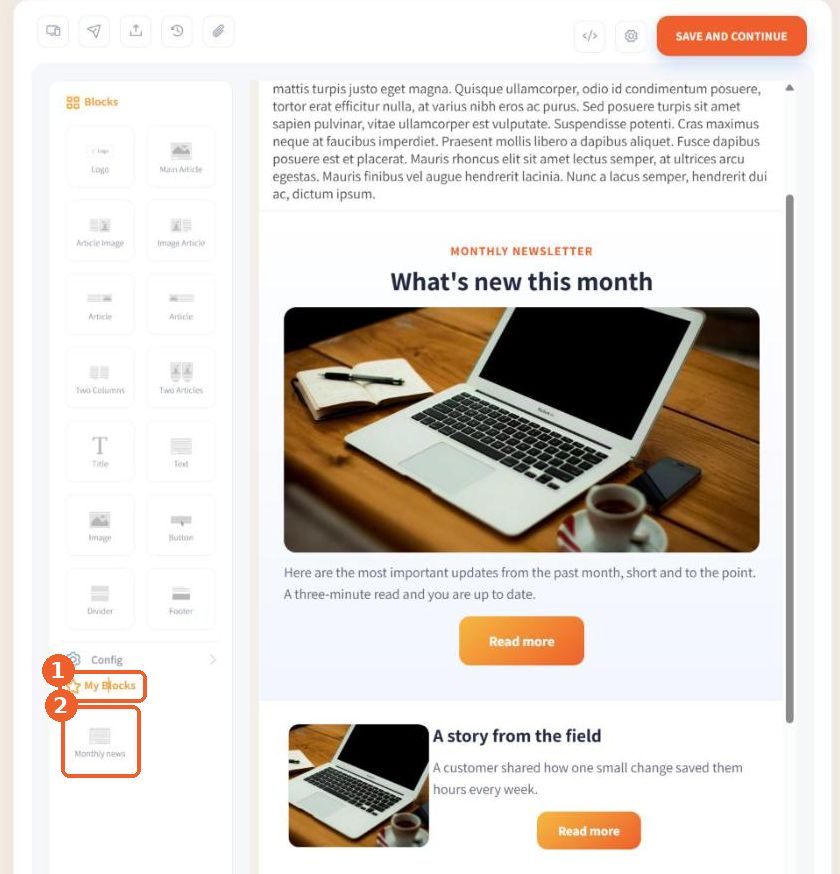
3. Drag it from My Blocks
The saved block appears under My Blocks in the Blocks panel. In any email, including new campaigns, drag it in like any other block.
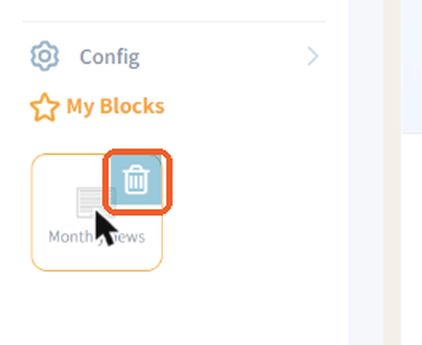
4. Delete a saved block
Hover over a block in My Blocks and a trash icon appears. Clicking it removes the block from the list. Emails that already use it are not changed.
Tip: Save your footer with your business details, a header with your logo or a button in your own style, and every new email is faster to build.
FAQ
How do I save a block for future emails?
Hover over the block, click the star icon, name it and click Save. It appears under My Blocks.
Are saved blocks available in new campaigns?
Yes. My Blocks are available in every campaign in your account.